SQL Basics for Non Technical Product Managers


Last week, I broke down databases and how they shape the products we build.
(If you haven’t read it yet, I’d highly recommend starting there, this piece will make a lot more sense afterwards.)
So this week, it only makes sense to talk about one of the main ways we interact with that data: SQL.
As a product manager, you’ll work with data constantly and while you may have a data team/resource supporting you, having a working knowledge of SQL changes how you operate.
It helps you move faster, explore things yourself, and better understand what’s actually happening inside your product.
In this Edition of The Product Notebook, we’ll cover:
What SQL is and why it’s useful for PMs
How to connect to a database
How querying a database works
Types of SQL Queries
Best practices for product managers working with SQL
By the end of this, you won’t be an SQL engineer. But you will be a PM who doesn’t always have to ask.
P.S. - This might be a bit of long read, but its definitely worth it so get comfortable.
What is SQL all about?

SQL which stands for (Structured Query Language) is the language used to interact with data stored in a database. It allows you to Create, Read, Update, and Delete data stored in structured tables. Beyond CRUD operations, SQL also helps teams filter, sort, combine, and analyse data.
Here’s a simple way to think about it:
A database is like a large library. SQL is how you ask the librarian questions like:
“Show me all books written in 2024”
“Find all books by this author”
“How many books are in this section?”
The information already exists, you’re just using SQL to get exactly what you need, in the format you need it.
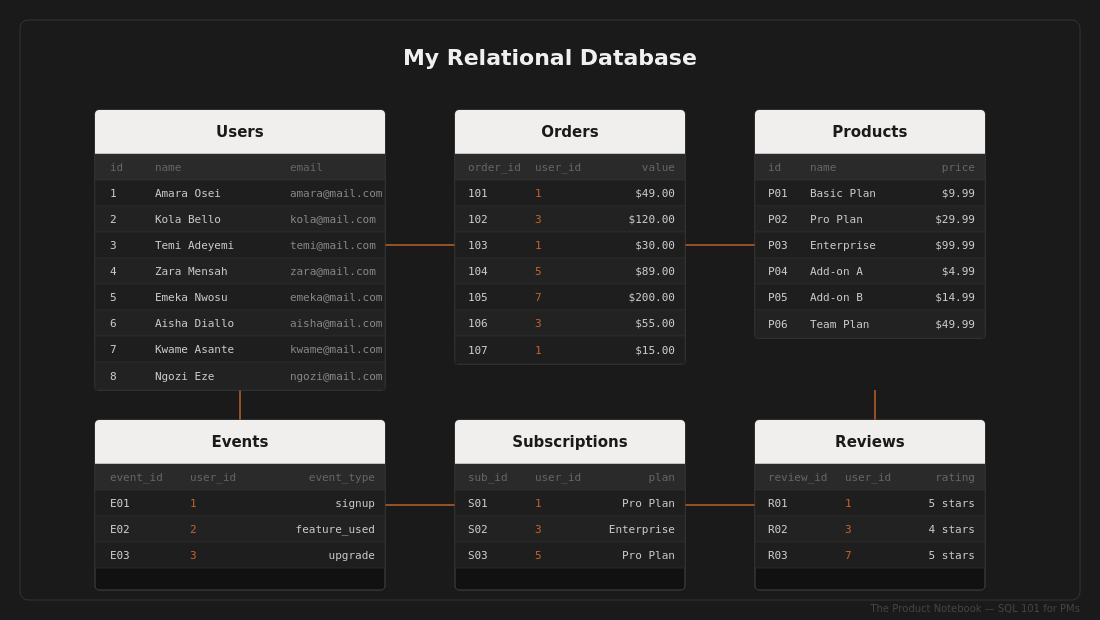
Quick note: SQL is mainly used for relational databases (where data is structured in tables with defined relationships.). Non-relational (NoSQL) databases don’t always use SQL, and they query data differently depending on how that data is stored.
Here’s a diagram of what a sample relational database looks like
Why SQL matters for PMs

A lot of product decisions start with a question that can be answered with some type of internal data set.
For Example;
How many users completed onboarding this week?
Where are people dropping off?
Which features are actually being used?
Someone has to answer those questions. And if every request has to go through a data analyst or data team, you’re dependent on their availability. You wait, follow up, and sometimes move forward without enough context because the answers didn’t come quickly enough.
SQL changes that dynamic.
Not because you’re trying to become a data analyst, but because it gives you more independence. You can explore things yourself, run quick checks, and spend less time waiting for answers.
Over time, it also improves the way you think about products.
You begin to understand what data is available, how it’s structured, and how different systems connect together behind the scenes. That context helps when defining requirements, designing features, discussing edge cases with engineers, or deciding what should actually be tracked.
SQL doesn’t just help you work with data better, it gives you better visibility into your product.
For Product Managers, the part of SQL we’ll most likely interact with is reading data from a database i.e pulling information for reports, answering product questions, understanding user behaviour, and making decisions.
So for the purpose of this article, that will be our focus: learning how to retrieve and understand data, rather than diving into creating, updating, or deleting records, which are typically handled by engineers or database administrators.
How to Connect to a Database
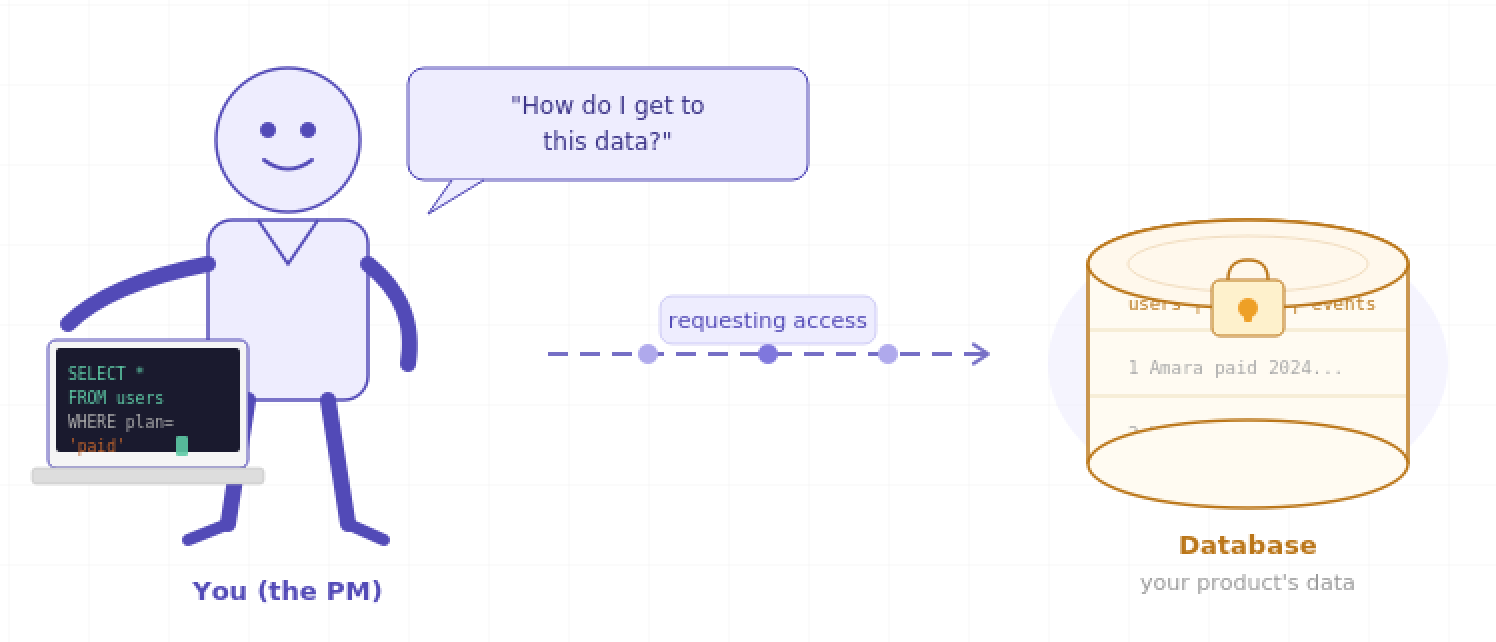
Before you can write any SQL query, you need access to the database.
You don’t just open a random screen and start typing SQL, you connect through a tool.
In most companies, this is usually one of the following:
A BI tool (like dashboards or analytics platforms)
A SQL editor (internal tools or tools like Metabase, Redash, MySQL Workbench or DBeaver)
Or a data warehouse interface (like BigQuery, Snowflake, etc.)
Once you have access, you’ll typically:
Log into the tool with your credentials
Select the database or data source
Open a query editor
Write and run your SQL queries/script
That query editor is your workspace, that’s where you ask questions and get results back as tables.
As the PM, you usually won’t set this up yourself. Access is typically granted by your data or engineering team. Your job is knowing what to do once you’re in.
How querying a database works
In simple terms, a query is just a question you’re asking your database.
Let’s say you want to know something to inform a decision.
Eg how many users in lagos are on a paid plan and have spent over #50,000
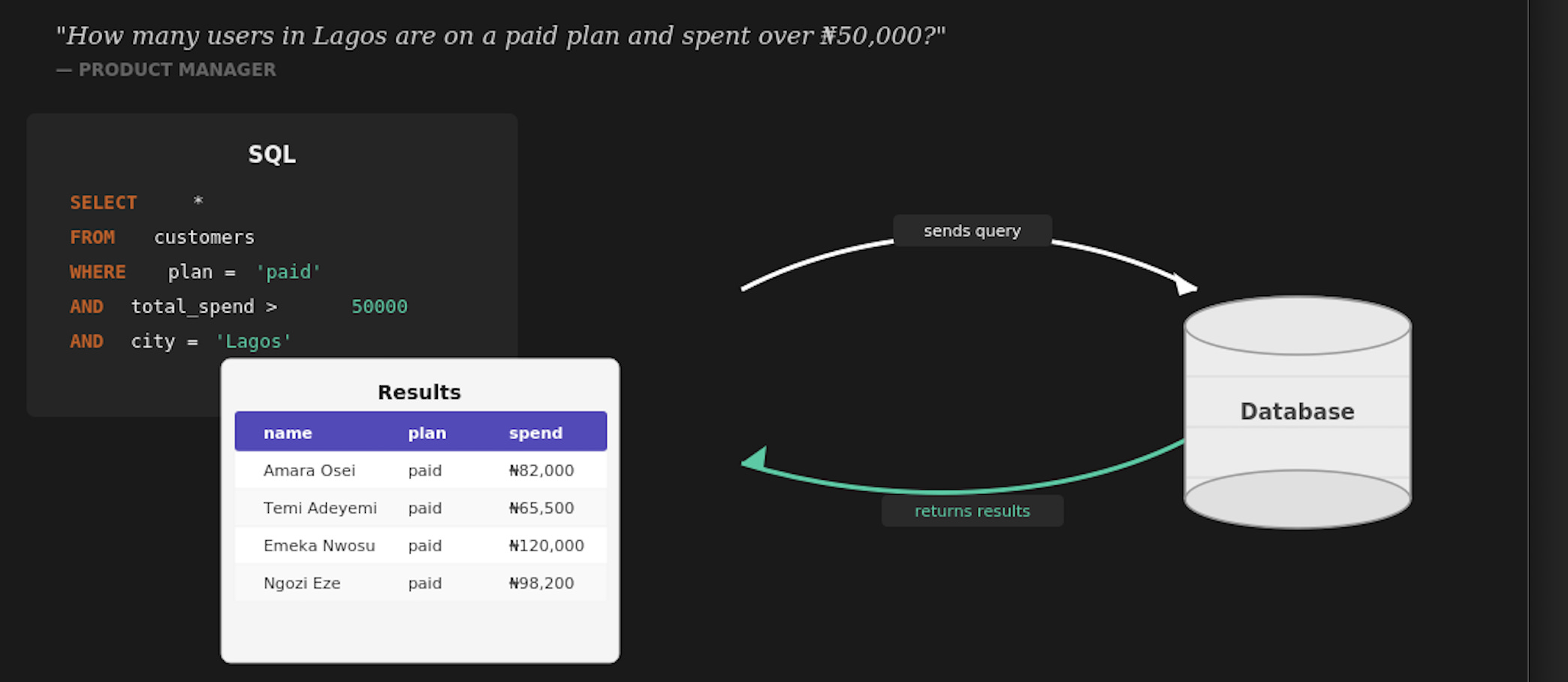
The database reads your question, finds the relevant data, and returns an answer in a structured table format. As shown in the image above.
You can also think of it like this: If your product’s database is a giant filing cabinet with thousands, maybe millions, of rows of information ( such as user records, events, transactions, activity logs etc), a query is how you walk up to that cabinet and say: show me exactly what I’m looking for, and nothing else.
Every query answers three questions
What data do you need?
Where is that data stored?
How should it be filtered or grouped?
Here’s a basic example of what that looks like:
SELECT first_name, email
FROM users
WHERE plan = 'paid'
In plain English, this query is saying: “Show me the first name and email of every user who is on a paid plan.”
SELECT is what you want to see. FROM is where the data lives (i.e the specific table). WHERE is the condition it has to meet. That structure repeats across almost every query you’ll ever write and once you see it, you can’t unsee it.
The querying process follows the same pattern every time:
Identify the table ( e.g., users, transactions, events )
Select the columns you need ( e.g., user_id, signup_date)
Apply your conditions for filtering (e.g., signups in the last 7 days)
Run the query and review what comes back
That’s it.
Common Types of SQL Queries

Since most PM SQL work revolves around reading data, these are some query types you’ll run into most often.
a) SELECT (Telling the Database What You Want)
Every query usually starts with SELECT.
It’s how you specify the data you want the database to return.
SELECT first_name, email
FROM users
This query retrieves the first_name and email columns from the users table.
If you want to retrieve everything in a table, you can use an asterisk:
SELECT *
FROM users
The * means:
“Return all columns in this table.”
This is useful when you’re exploring a table for the first time and want to quickly see all the available data.
b) WHERE (Filter Down to What Matters)
Without a WHERE clause, a query returns every row in the table.
Most of the time, you only want specific records.
SELECT first_name, email
FROM users
WHERE plan = 'paid'
This query retrieves only users whose plan is set to paid.
WHERE works by using logical operators to define conditions.
Here are some of the most common ones:
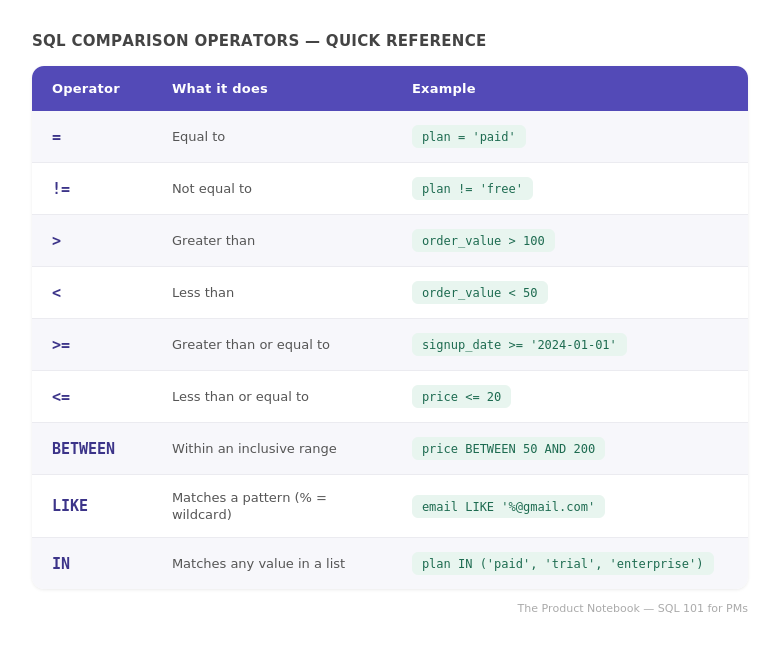
You can also combine conditions:
SELECT first_name, email
FROM users
WHERE plan = 'paid'
AND signup_date >= '2024-01-01'
This retrieves paid users who signed up from January 2024 onwards.
WHERE makes queries useful for filtering and narrowing down data.
c) ORDER BY (Sort the Results)
ORDER BY controls how the returned data is sorted.
SELECT first_name, signup_date
FROM users
ORDER BY signup_date DESC
This query retrieves users and sorts them from the most recent signup to the oldest.
DESC= descending orderASC= ascending order
This is commonly used for timelines, dashboards, transaction history, and reporting.
d) LIMIT (Reduce the Number of Results)
Sometimes a table contains thousands or even millions of rows.
LIMIT allows you to cap how many results are returned.
SELECT first_name, email
FROM users
ORDER BY signup_date DESC
LIMIT 10
This query retrieves the 10 most recently signed-up users.
It’s useful when:
previewing data
testing queries
building dashboards or summaries
e) COUNT (Answer “How Many?”)
COUNT is used to count how many rows match a condition.
SELECT COUNT(*)
FROM users
WHERE plan = 'paid'
This query counts how many users are currently on the paid plan.
Instead of returning rows of data, it returns a single number.
f) GROUP BY (Break Data Into Categories)
GROUP BY allows you to group data into categories and summarize it.
SELECT plan, COUNT(*)
FROM users
GROUP BY plan
This query groups users by plan type and counts how many users belong to each plan.
Instead of one total count, you now get segmented results like:
free users
trial users
paid users
You can also combine it with filtering:
SELECT plan, COUNT(*)
FROM users
WHERE signup_date >= '2024-01-01'
GROUP BY plan
This groups and counts only users who signed up from 2024 onwards.
For PMs, this is where SQL becomes especially useful for understanding user segments and trends.
g) JOINs (Combine Data Across Tables)
So far, every query has pulled data from a single table.
But most real product questions require data from multiple tables.
For example:
Which users completed onboarding?
Which users made purchases after signup?
What’s the relationship between subscriptions and payments?
That’s where JOINs come in.
A JOIN combines data from two tables using a shared field, usually an ID.
SELECT users.first_name, orders.order_value
FROM users
JOIN orders ON users.id = orders.user_id
This query combines:
the user’s first name from the
userstablethe order value from the
orderstable
The connection happens through the matching user ID.
In simple terms, the query is saying:
“Show me users alongside the orders that belong to them.”
INNER JOIN
The most common type is the INNER JOIN (often written as just JOIN).
It only returns records where there’s a match in both tables.
SELECT users.first_name, users.plan, orders.order_value
FROM users
JOIN orders ON users.id = orders.user_id
WHERE users.plan = 'paid'
ORDER BY orders.order_value DESC
This query retrieves:
paid users
their order values
sorted from highest to lowest order value
Only users with matching orders will appear.
LEFT JOIN
A LEFT JOIN returns everything from the first table, even if there’s no matching data in the second table.
SELECT users.first_name, orders.order_value
FROM users
LEFT JOIN orders ON users.id = orders.user_id
This query retrieves all users, including users who have never placed an order.
For users without orders, the order_value will appear as NULL.
That NULL is useful because it helps identify users who haven’t converted yet.
You do not need to memorise every SQL query type immediately.
The goal is simply to understand what these queries are doing when you see them, and how teams use them to interact with product data every day.
Best Practices for Writing SQL

Here are some key things to consider
Start Simple, Then Build Up: Don’t try to write the perfect query all at once.
Start with a basic version, check the output, then gradually add filters, sorting, or aggregations. It makes errors easier to spot and helps you understand what each part of the query is doing.
Don’t Run Queries You Don’t Understand Before running a query, you should know: which table it’s touching, what conditions it’s applying and what result it should return. If you can’t explain those three things, pause first. This becomes especially important when working with large datasets or databases that allow updates and deletions.
Format Queries Clearly: SQL will still run even if everything is written on one long line. But readability matters. A well-formatted query is easier to review, debug, and share with others. A simple habit like putting each clause on its own line makes a huge difference.
Comment your queries: If you’re saving a query to reuse later or sharing it with someone, add a comment explaining what it does. In SQL, comments start with two dashes.
Sanity-check your results: If the numbers look off, investigate. SQL will always return something, it’s your job to confirm it’s correct.
Be Careful With
DELETEandUPDATEQueries:DELETEandUPDATEqueries change data permanently. Before running them, double-check yourWHEREclause carefully. A missing filter can affect every row in the table instead of the specific records you intended to change.
Where to Practice Everything You’ve Learned

If you want to practice everything covered in this article before using SQL in a real environment, a good place to start is the W3Schools SQL Tutorial.
It comes with a built-in SQL editor, so there’s no setup, installation, or account needed. You can start running queries directly in your browser immediately.
The platform also includes a sample database (with tables like Customers, Orders, and Products,) which makes it a good environment to practice writing queries, filtering data, sorting results, using joins, and understanding how different SQL commands work together.
Start simple, experiment freely, and try changing queries to see how the output changes because the fastest way to learn SQL is to actually use it.

SQL can feel intimidating at first, especially if you’ve never worked closely with data before. And after reading this, I don’t expect you to suddenly become a SQL engineer.
That’s not the goal.
The goal is simply to help you understand the basics well enough to follow conversations, interact with data more confidently, and understand what’s happening when queries come up in your day-to-day work.
Now you have enough context to start.
But don’t just read this and move on. Open the practice tool, try a few simple queries, tweak them, rerun them, and keep experimenting until things start to feel natural.
That’s really how you get good at this stuff.
Until Next week,